What Is SSL? SSL, TLS, and HTTPS Explained (2026 Guide)
Complete guide to SSL, TLS, and HTTPS in 2026. Learn how SSL works, types of certificates, and why HTTPS is a Google ranking factor.
Check Your SSL Certificate →🚨 The 2026 SSL Changes You Must Know
As of March 2026, SSL certificates are valid for a maximum of 200 days (down from 398 days). By 2029, certificates will only be valid for 47 days. Automation is no longer optional — it's required. This guide covers everything you need to know.
📖 Table of Contents
- 1. What Is SSL?
- 2. What Does SSL Stand For?
- 3. SSL vs TLS: What's the Difference?
- 4. What Is HTTPS? How SSL, TLS, and HTTPS Connect
- 5. How Does SSL Work? The TLS Handshake Explained
- 6. What Is an SSL Certificate?
- 7. Types of SSL Certificates Explained
- 8. SSL and SEO: Why HTTPS Is a Google Ranking Factor
- 9. The 2026 SSL Changes Every Website Owner Must Know
- 10. How to Check If a Website Has SSL
- 11. Free SSL vs Paid SSL: What's the Difference?
- 12. How to Get, Create, and Install an SSL Certificate
- 13. Common SSL Errors and What They Mean
- 14. Frequently Asked Questions
1. What Is SSL?
SSL (Secure Sockets Layer) is a security protocol that creates an encrypted connection between a web server and a browser. When SSL is active, any data transferred between the two — passwords, credit card numbers, personal information — is scrambled so that no one intercepting it can read it.
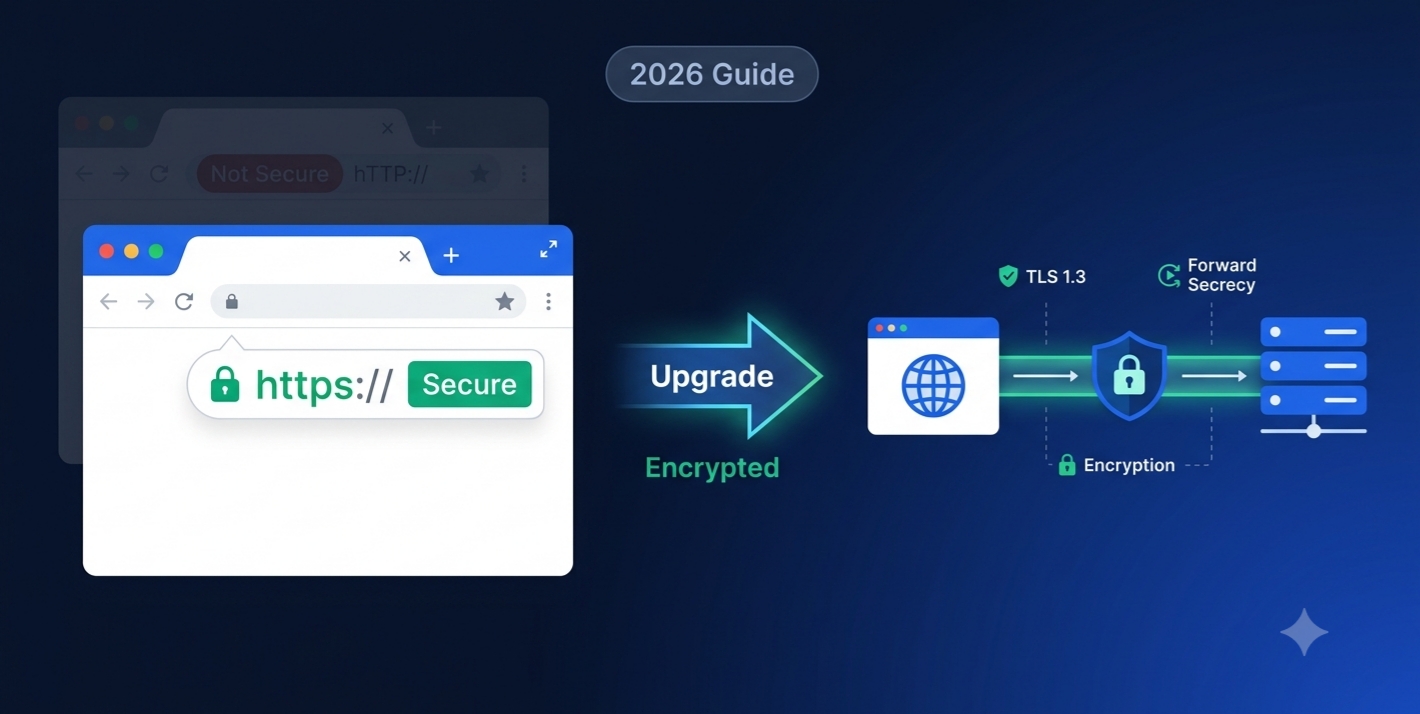
SSL is what makes the padlock icon appear in your browser's address bar. It's what changes http:// to https:// (the "s" stands for "secure"). It's the technology that tells visitors your website is safe to use.
Here's the simplest way to understand SSL:
Imagine sending a letter through the post. Without SSL, that letter is written on a postcard — anyone who handles it during delivery can read it. With SSL, that letter is sealed inside an envelope with an unbreakable lock. Only the intended recipient has the key.
SSL encrypts the "envelope" of every piece of data your website sends and receives.
What SSL Protects
SSL protects data in transit — the information moving between a user's browser and your web server. This includes:
- Login credentials (usernames and passwords)
- Payment information (credit card numbers, billing addresses)
- Personal data submitted through forms
- Session cookies that keep users logged in
- Search queries and browsing behavior on your site
- Any API calls or data exchanges
SSL does not protect data at rest (stored in your database) or data after it reaches your server. It specifically secures the transmission channel.
2. What Does SSL Stand For?
SSL stands for Secure Sockets Layer.
It was developed by Netscape Communications in the mid-1990s as the first widely adopted protocol for securing internet communications. The name refers to the "socket" — the connection point between a client (browser) and a server — being made "secure" through encryption.
SSL went through three versions:
- SSL 1.0 — Never publicly released (serious flaws)
- SSL 2.0 (1995) — First public version, quickly found to have vulnerabilities
- SSL 3.0 (1996) — Improved but ultimately deprecated in 2015 due to the POODLE vulnerability
After SSL 3.0, the protocol was redesigned and renamed TLS (Transport Layer Security). Despite the name change, the term "SSL" stuck in popular usage — which is why you still hear "SSL certificate" today even though technically all modern secure connections use TLS.
3. SSL vs TLS: What's the Difference?
This is one of the most commonly confused distinctions in web security.
The short answer: SSL is the old protocol that no longer exists. TLS is the modern replacement that actually secures your connections today. When anyone says "SSL" in 2026, they almost always mean TLS.
| Protocol | Year | Status |
|---|---|---|
| SSL 1.0 | 1994 | Never released |
| SSL 2.0 | 1995 | Deprecated 2011 |
| SSL 3.0 | 1996 | Deprecated 2015 |
| TLS 1.0 | 1999 | Deprecated 2021 |
| TLS 1.1 | 2006 | Deprecated 2021 |
| TLS 1.2 | 2008 | ✅ Active — widely used |
| TLS 1.3 | 2018 | ✅ Active — current standard |
TLS 1.0 and 1.1 were formally deprecated in March 2021, leaving TLS 1.2 and TLS 1.3 as the only currently accepted versions.
Why Did SSL Get Replaced?
SSL had fundamental cryptographic weaknesses that couldn't be patched without breaking backward compatibility. The POODLE attack (2014) demonstrated that SSL 3.0 could be exploited to decrypt HTTPS traffic. Rather than continue patching a flawed foundation, the industry moved to TLS.
TLS 1.3 (the current standard) offers major improvements over all previous versions:
- Faster connection setup — 1 round-trip handshake instead of 2 (TLS 1.2) = faster page loads
- Forward secrecy — even if a private key is compromised later, past sessions remain secure
- Removed weak cipher suites — eliminated outdated encryption methods that were still in TLS 1.2
- Simpler and more secure — fewer negotiation options means fewer opportunities for attacks
Why Do We Still Say "SSL"?
Despite TLS being the actual protocol used for over 20 years, "SSL" persists for three reasons:
- Search habits — "SSL certificate" is how people search; changing the terminology would confuse users
- Legacy naming — vendors, hosting panels, and documentation built around the SSL term continue to use it
- Industry convention — certificate authorities still sell "SSL certificates" even though they implement TLS
Practical takeaway: When you see "SSL," read it as "TLS." When someone tells you to "install an SSL certificate," they mean get a TLS certificate. The certificate itself is protocol-agnostic — what determines whether TLS 1.2 or TLS 1.3 is used is your server configuration.
4. What Is HTTPS? How SSL, TLS, and HTTPS Connect
HTTPS = HTTP + TLS
- HTTP (HyperText Transfer Protocol) is the protocol that defines how web pages are requested and delivered
- HTTPS (HTTP Secure) is HTTP running over a TLS-encrypted connection
- SSL/TLS is the encryption layer that makes the connection secure
Think of it as layers:
Your Data (the letter)
        ↓
        HTTP (the postal service)
        ↓
        TLS/SSL (the sealed, tamper-proof envelope)
        ↓
        HTTPS (the complete secure delivery process)
Without TLS, HTTP sends everything in plain text — anyone watching network traffic can read it. With TLS, even if someone intercepts the traffic, they see encrypted gibberish.
How to Spot HTTPS
- In the URL:
http://— no encryption, not secure /https://— encrypted with TLS - In the browser: Padlock icon 🔒 — HTTPS active / "Not Secure" warning ⚠️ — no HTTPS
What "Not Secure" means in practice: Since 2018, Chrome and other major browsers actively flag all HTTP sites with a "Not Secure" warning in the address bar. This is a deliberate design choice to push the entire web toward HTTPS.
5. How Does SSL Work? The TLS Handshake Explained
When your browser connects to an HTTPS website, the TLS handshake happens automatically in milliseconds. Here's what's actually happening:
Step 1: Client Hello
Your browser sends a "Client Hello" message to the server containing:
- The TLS versions it supports (TLS 1.2, TLS 1.3)
- The cipher suites it supports (lists of encryption algorithms)
- A random number used for key generation
Step 2: Server Hello
The server responds with:
- The chosen TLS version (highest version both support)
- The chosen cipher suite
- Its SSL/TLS certificate
- Another random number
Step 3: Certificate Verification
Your browser checks the server's certificate:
- Is it issued by a trusted Certificate Authority (CA)?
- Is it currently valid (not expired)?
- Does it match the domain you're connecting to?
- Has it been revoked?
If any check fails, you get a security warning. If all pass, the handshake continues.
Step 4: Key Exchange
Browser and server exchange information to create a shared secret (the "session key") without ever transmitting the key itself. This is the magic of asymmetric encryption:
- The server has a public key (shared openly in the certificate) and a private key (kept secret)
- Data encrypted with the public key can only be decrypted with the private key
- The browser uses the server's public key to securely establish a shared symmetric key
Step 5: Encrypted Connection Established
Using the shared session key, browser and server switch to symmetric encryption for all further communication. Symmetric encryption is much faster than asymmetric encryption — this is why the setup process uses asymmetric, but the actual data transfer uses symmetric.
TLS 1.3 Makes This Faster
TLS 1.3 reduced the handshake from 2 round trips (TLS 1.2) to 1 round trip — meaning it takes less time to establish a secure connection. For users, this translates to faster page loads on HTTPS sites.
What Is SSL Encryption?
SSL encryption is the process of converting readable data (plaintext) into an unreadable scrambled format (ciphertext) that can only be decoded by someone with the correct key.
SSL/TLS uses two types of encryption working together:
- Asymmetric Encryption (during the handshake): Uses a mathematically linked public key and private key pair. Data encrypted with the public key can only be decrypted with the private key — and vice versa. Asymmetric encryption is computationally expensive, so it's only used during the setup phase.
- Symmetric Encryption (during data transfer): Uses a single shared session key for both encryption and decryption. Much faster than asymmetric encryption. Once the handshake establishes the session key securely, all actual data transfer uses symmetric encryption.
This two-phase design gives TLS both security (asymmetric for key exchange) and speed (symmetric for data transfer) — the best of both approaches.
6. What Is an SSL Certificate?
An SSL certificate (technically a TLS certificate) is a digital document issued by a Certificate Authority (CA) that serves two functions:
- Authentication — proves that the server you're connecting to is actually who it claims to be
- Enables encryption — contains the public key used in the TLS handshake to establish encrypted communication
| Field | Description |
|---|---|
| Domain Name | Which domain the certificate is valid for |
| Issued By | The Certificate Authority that verified and signed it |
| Valid From | When the certificate became active |
| Valid Until | When it expires |
| Public Key | Used during the TLS handshake |
| Digital Signature | Proves the certificate hasn't been tampered with |
| Certificate Type | DV, OV, or EV |
| TLS Versions Supported | Which TLS versions this certificate works with |
What Is a Certificate Authority (CA)?
A Certificate Authority is a trusted organization that issues SSL certificates after verifying the identity of who's requesting them. Major CAs include Let's Encrypt, DigiCert, Comodo/Sectigo, GlobalSign, and Entrust.
Browsers maintain a list of trusted CAs. When you connect to an HTTPS website, your browser checks whether the site's certificate was issued by a CA on that trusted list. If yes — padlock icon. If no — security warning.
7. Types of SSL Certificates Explained
By Validation Level
Domain Validation (DV) Certificates — The most common type. The CA only verifies that you control the domain.
- ✅ Issued in minutes to hours
- ✅ Free options available (Let's Encrypt)
- ✅ Full encryption — data is just as secure as OV/EV
- ❌ No organization identity verification
- 🎯 Best for: personal websites, blogs, small businesses, developer projects
Organization Validation (OV) Certificates — The CA verifies both domain control AND that your organization is a legitimate, registered business.
- ✅ Adds organizational identity in certificate details
- ✅ More trust for business websites
- ⏱️ Takes 1-3 business days
- 💰 $50-$200/year
- 🎯 Best for: established business websites, B2B platforms
Extended Validation (EV) Certificates — The highest level of verification. The CA does a thorough vetting of your organization's legal status, physical existence, and identity.
- ✅ Maximum identity assurance
- ⏱️ Takes 1-5 business days
- 💰 $100-$500+/year
- 🎯 Best for: banks, payment processors, large e-commerce, enterprise sites
Important note: All three types provide the same level of encryption. The difference is identity verification, not security strength. A Let's Encrypt DV certificate encrypts data just as strongly as an expensive EV certificate.
By Coverage
- Single Domain Certificates — Covers one domain only.
- Multi-Domain Certificates (SAN) — Covers multiple specific domains listed in the certificate.
- Wildcard Certificates — Covers a domain and all its subdomains:
*.example.comcoverswww.example.com,mail.example.com, etc. - Multi-Domain Wildcard — Combines both: covers multiple domains AND their subdomains.
8. SSL and SEO: Why HTTPS Is a Google Ranking Factor
SSL/HTTPS has been a confirmed Google ranking factor since 2014 when Google announced "HTTPS everywhere" as part of its push for a safer web. In 2018, Google went further: Chrome began actively flagging all HTTP sites with "Not Secure" warnings.
Direct and Indirect SEO Impact
Direct impact:
- Google rewards HTTPS with a ranking signal (confirmed since 2014)
- In 2026, not having HTTPS essentially means you're starting with a ranking disadvantage
Indirect impact:
- "Not Secure" warnings increase bounce rate significantly
- High bounce rate signals poor user experience to Google
- Browsers actively discourage users from visiting HTTP sites — reducing traffic
- HTTP sites can't use HTTP/2 or HTTP/3 (faster protocols that also help rankings)
How to Check SSL Status for Any Website
Use Rankcept's free SSL Lookup to instantly see:
- Whether a site has a valid SSL certificate
- The certificate type (DV/OV/EV)
- Which TLS versions are supported
- How many days until expiry
- Whether the certificate is browser-trusted
The HSTS Connection
HTTPS Strict Transport Security (HSTS) is an extra layer built on top of SSL/TLS. Once enabled, it tells browsers to only ever connect to your site via HTTPS — no HTTP fallback allowed.
HSTS protects against "protocol downgrade attacks" where an attacker tries to strip the HTTPS and intercept HTTP traffic. Enabling HSTS (after SSL is properly configured) is considered a best practice for any website serious about security.
9. The 2026 SSL Changes Every Website Owner Must Know
2026 brought significant changes to how SSL certificates work. If you manage a website, these directly affect you.
Maximum Certificate Validity Is Now 200 Days
Under CA/Browser Forum Ballot SC-081, the maximum validity period for new SSL certificates has been reduced:
| Period | Maximum Validity |
|---|---|
| Before March 2026 | 398 days (~13 months) |
| March 2026 – March 2027 | 200 days (~6.5 months) |
| March 2027 – March 2029 | 100 days (~3 months) |
| After March 2029 | 47 days (~1.5 months) |
What this means: If you renew an SSL certificate after March 15, 2026, it will only be valid for 200 days — not the 13 months you might be used to. You now need to renew at least twice per year. By 2029, you'll need to renew every 47 days — making automation essentially mandatory.
DNSSEC Validation Is Now Mandatory for Certificate Issuance
From March 15, 2026, the CA/Browser Forum requires CAs to perform DNSSEC validation during certificate issuance. This means if your domain has misconfigured DNSSEC records, your SSL certificate may fail to issue or renew.
Action required: Check that your DNS is correctly configured. Use Rankcept's free DNS Lookup to verify your DNS records are properly set up before your next certificate renewal.
TLS 1.0 and 1.1 Are Gone
TLS 1.0 and 1.1 were deprecated in 2021. In 2026, major browsers and certificate authorities no longer support these versions. If any part of your infrastructure still uses TLS 1.0 or 1.1, it will fail.
Check your TLS version with Rankcept's SSL Lookup — the tool shows which TLS versions your server supports and whether you're running the current standard (TLS 1.3).
Phone and Email Verification Being Phased Out
By March 2027, phone-based domain verification for SSL issuance will be completely eliminated. By March 2028, email-based verification follows. From that point, only DNS-based, HTTP-based, or IP-based verification methods will be accepted.
If you're used to verifying SSL certificates via email, plan to transition to DNS-based verification.
10. How to Check If a Website Has SSL
Quick Check — Browser
- Look at the address bar
- If the URL starts with
https://and shows a padlock 🔒 → SSL is active - If it shows "Not Secure" or
http://→ no SSL
Detailed Check — SSL Lookup Tool
- Go to rankcept.com/ssl-lookup
- Enter any domain (e.g.,
yourwebsite.com) - See instantly:
- ✅ Certificate valid or ❌ expired
- Certificate type (DV/OV/EV)
- Issuer (Certificate Authority)
- Valid From and Valid Until dates
- Days remaining
- TLS version (1.2 or 1.3?)
- Browser trusted (yes/no)
- HSTS enabled (yes/no)
What to Look For on Your Own Site
- ✅ Status: Valid
- ✅ Days remaining: 30+ days (renew immediately if under 30)
- ✅ TLS version: TLS 1.3 (or at minimum TLS 1.2)
- ✅ Browser trusted: Yes
- ✅ Certificate matches your domain exactly
11. Free SSL vs Paid SSL: What's the Difference?
Encryption strength is identical. A free Let's Encrypt certificate encrypts data just as strongly as a $500/year commercial certificate. The padlock icon looks the same to your visitors. There is no difference in cryptographic security between free and paid SSL.
Why Would You Pay for SSL?
- Validation level: Let's Encrypt only offers DV. If you need OV or EV, you must pay.
- Validity period: Let's Encrypt certificates are valid for 90 days. Commercial certificates max out at 200 days.
- Warranty: Commercial SSL includes a financial warranty. Let's Encrypt offers none.
- Wildcard support: Let's Encrypt now offers wildcard certificates, so this is no longer a differentiator.
- Support: Paid certificates come with CA customer support. Let's Encrypt is community-supported.
The Verdict
For the vast majority of websites — personal sites, small businesses, blogs, tools sites, SaaS products — Let's Encrypt's free DV certificate is entirely appropriate. It provides the same encryption, the same padlock icon, and the same SEO benefit as any paid certificate.
Top Free SSL Options
- Let's Encrypt: Most widely used. 90-day certificates with Certbot for automated renewal.
- Cloudflare: Free SSL included with Cloudflare's CDN.
- ZeroSSL: Alternative with similar free DV certificates and a user-friendly interface.
12. How to Get, Create, and Install an SSL Certificate
Getting SSL set up involves three stages: choosing the right certificate, obtaining and verifying it, and installing it on your server.
Step 1: Choose Your Certificate Type
| Your Situation | Certificate Type | Cost |
|---|---|---|
| Personal site, blog, small business | DV — Let's Encrypt | Free |
| Established business wanting credibility | OV | $50–$200/year |
| Bank, payment processor, enterprise | EV | $100–$500+/year |
Step 2: Get and Install the Certificate
Option A — Through Your Hosting Provider (Easiest, Recommended)
Most modern hosting providers include free SSL automatically. This is the easiest method — your host handles installation and renewal.
- Log into your hosting control panel (cPanel, Hostinger hPanel, Plesk, etc.)
- Look for "SSL/TLS" or "HTTPS" settings
- Enable SSL for your domain
- Done — your host handles everything including auto-renewal
Option B — Let's Encrypt with Certbot (For VPS and Dedicated Servers)
If you manage your own server, Certbot automates the entire process:
# Install Certbot (Ubuntu/Debian)
        sudo apt update
        sudo apt install certbot python3-certbot-apache

        # Get and install certificate — Apache
        sudo certbot --apache -d yourdomain.com -d www.yourdomain.com

        # Get and install certificate — Nginx
        sudo apt install python3-certbot-nginx
        sudo certbot --nginx -d yourdomain.com -d www.yourdomain.com

        # Test auto-renewal is configured correctly
        sudo certbot renew --dry-run
Option C — Paid Certificate from a CA
For OV or EV certificates that require organizational verification:
- Purchase from DigiCert, Sectigo, or GlobalSign
- Generate a CSR (Certificate Signing Request)
- Submit the CSR to your CA during checkout
- Complete domain or organization verification
- Download the issued certificate files
- Install via your hosting panel or server configuration
Step 3: Verify Domain Ownership
DNS Verification (Recommended) — Add a TXT record to your domain's DNS. Works even before your site is live. Most reliable method. Check your DNS records with Rankcept's DNS Lookup.
HTTP Verification — Upload a specific file to your web server. Works only if your site is already live and accessible.
Email Verification — Respond to an email sent to admin@yourdomain.com. Note: being phased out, fully retired by March 2028.
Step 4: Force HTTPS — Redirect All HTTP Traffic
Apache (.htaccess):
RewriteEngine On
        RewriteCond %{HTTPS} off
        RewriteRule ^(.*)$ https://%{HTTP_HOST}%{REQUEST_URI} [L,R=301]
Nginx:
server {
            listen 80;
            server_name yourdomain.com www.yourdomain.com;
            return 301 https://$host$request_uri;
        }
WordPress: Use the "Really Simple SSL" plugin, or update your WordPress Address and Site Address in Settings → General to https://.
Verify the redirect is working correctly with Rankcept's URL Redirect Checker — confirm it's a 301 (permanent) redirect, not a 302 (temporary).
Step 5: Verify Everything Is Working
After installation, confirm with Rankcept's SSL Lookup:
- ✅ Certificate status: Valid
- ✅ Domain: matches your site exactly
- ✅ TLS version: 1.3 (or 1.2 minimum)
- ✅ Browser trusted: Yes
- ✅ Days remaining: 90 (Let's Encrypt) or up to 200 (commercial)
13. Common SSL Errors and What They Mean
"Your Connection Is Not Private" (Chrome)
The most common SSL error. Causes:
- Certificate expired — check with SSL Lookup and renew
- Domain mismatch — the certificate doesn't cover the exact URL you're visiting
- Untrusted CA — self-signed certificate or private CA not in browser's trust list
- Clock sync issue — your device's date/time is wrong, making the certificate appear invalid
"NET::ERR_CERT_DATE_INVALID"
The certificate has expired. Renew immediately.
"NET::ERR_CERT_COMMON_NAME_INVALID"
Domain mismatch. The certificate was issued for a different domain. Fix: get a certificate that covers both versions, or redirect to the covered version.
"NET::ERR_CERT_AUTHORITY_INVALID"
The certificate was issued by a CA that browsers don't trust — typically a self-signed certificate. Fix: get a certificate from a trusted CA like Let's Encrypt.
Mixed Content Warning
You have HTTPS, but some resources on your page (images, scripts, CSS) are loading over HTTP. Fix: Update all resource URLs to use https://.
"SSL Handshake Failed"
The browser and server couldn't agree on a TLS version or cipher suite. Fix: update server TLS configuration to support TLS 1.2 and 1.3.
14. Frequently Asked Questions
SSL is a security technology that encrypts the connection between your browser and a website. When SSL is active, data you send to a website is scrambled so no one intercepting it can read it. You can tell SSL is active when a site's URL starts with
https:// and shows a padlock icon.SSL stands for Secure Sockets Layer. It was the original encryption protocol developed by Netscape in the 1990s. SSL itself is now deprecated — the modern protocol is TLS (Transport Layer Security) — but "SSL" remains the common term.
SSL (Secure Sockets Layer) is the original protocol, now deprecated. TLS (Transport Layer Security) is its modern replacement. All versions of SSL are no longer considered secure. TLS 1.2 and TLS 1.3 are the currently accepted standards. When anyone says "SSL" today, they almost always mean TLS.
HTTPS (HyperText Transfer Protocol Secure) is HTTP running over a TLS-encrypted connection. The "S" stands for Secure. When you see
https:// in a URL and a padlock in the browser, the connection is encrypted with TLS.Yes. In 2026, SSL/HTTPS is effectively mandatory. Without it: browsers show "Not Secure" warnings, Google applies a ranking penalty, HTTP/2 and HTTP/3 are unavailable, and users won't trust your site with any personal information.
Most modern hosting providers include free SSL automatically through Let's Encrypt. Check your hosting control panel. If not included, you can get a free certificate from Let's Encrypt at letsencrypt.org and install it via Certbot. Paid certificates are available from DigiCert, Sectigo, GlobalSign, and others.
Modern TLS (especially TLS 1.3) adds negligible latency. TLS 1.3 reduced the handshake from 2 round trips to 1, making HTTPS connections faster than older TLS versions. HTTP/2 and HTTP/3 only work over HTTPS, meaning SSL actually enables faster loading overall.
As of March 2026, new SSL certificates are valid for a maximum of 200 days (~6.5 months). Previously, they were valid for up to 398 days (~13 months). By March 2027, maximum validity drops to 100 days. By March 2029, 47 days.
A Certificate Authority is a trusted organization that issues SSL certificates after verifying the identity of the website owner. Major CAs include Let's Encrypt (free), DigiCert, Sectigo, and GlobalSign.
DV (Domain Validation) verifies domain ownership only — fastest and free. OV (Organization Validation) verifies domain ownership plus checks that your organization is legitimate — takes 1-3 days. EV (Extended Validation) does the most thorough identity verification — takes 1-5 days. All three provide the same encryption strength; the difference is identity verification level.
Use Rankcept's free SSL Lookup — enter your domain and instantly see the certificate status, expiry date, TLS version, and whether it's browser-trusted.
SSL certificates have expiry dates by design — it's a security feature. Expiry forces regular renewal, which ensures domain ownership is periodically re-verified, reduces the window where a compromised key can be exploited, and encourages adoption of current security standards.
SSL protects data in transit — the connection between your users and your server. It does not protect against server-side vulnerabilities, SQL injection, cross-site scripting, or other common attacks. SSL is one important security layer, not a complete security solution.
Browsers immediately show a full-screen "Your connection is not private" warning. Most visitors leave without proceeding. Your HTTPS ranking signal is lost. Renew immediately — every hour of expiry costs traffic and trust.
The easiest method is through your hosting provider's control panel. For manual installation, use Certbot with the command
sudo certbot --apache -d yourdomain.com (Apache) or sudo certbot --nginx -d yourdomain.com (Nginx). After installation, verify it's working with Rankcept's SSL Lookup.Two ways: (1) Quickly — click the padlock icon in your browser's address bar. (2) Thoroughly — use Rankcept's free SSL Lookup to check validity, expiry date, TLS version, issuer, and browser trust status for any domain.
You don't create SSL certificates yourself — you obtain them from a Certificate Authority (CA) that verifies your domain ownership. For a free certificate, use Let's Encrypt via Certbot or your hosting provider's built-in SSL tool. For paid certificates, purchase from DigiCert, Sectigo, or GlobalSign and follow their issuance process.
SSL encryption converts your data into an unreadable scrambled format before sending it across the internet, then converts it back to readable form when it arrives. Think of it as a secret code only you and the website know. Without it, anyone watching network traffic can read everything you send — passwords, payment details, personal information.
🔧 Free Tools — Check Your SSL Certificate
Verify certificate validity, TLS version, and expiry date — completely free, no signup required.
Check Your SSL Certificate Instantly
Verify certificate validity, TLS version, and expiry date — completely free, no signup required.
🔍 Check SSL Certificate →Disclaimer: This guide is for educational purposes. SSL/TLS configurations may vary based on server and hosting provider settings.